
.png)
Want to help a student strengthen an essay, work through a coding problem, or put feedback into practice while you’re together? Pencil Spaces’ new Document Editor and Code Editor give you a shared place to do it, right inside your lesson.
When the work happens in one app and the lesson in another, helping a student can mean switching tabs or asking them to share their screen just to see where they’re stuck. Both new editors let you and your students work on the same document or code at the same time. Move from explaining a concept to trying it together, with the work alongside the rest of your lesson.
Help students turn feedback into stronger writing
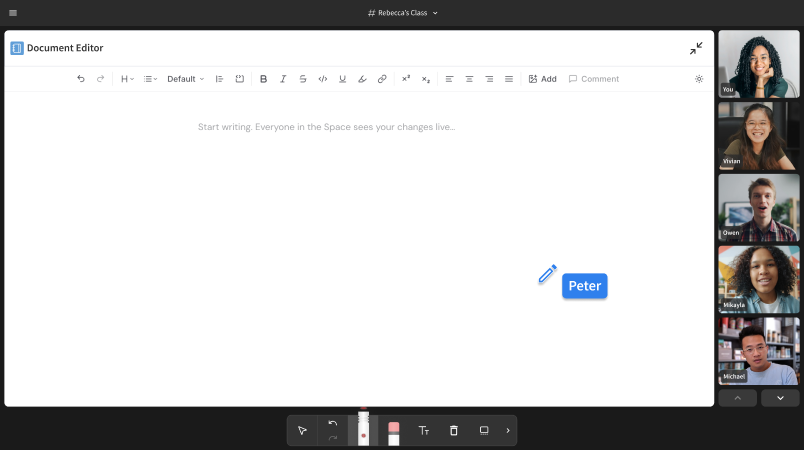
Use the Document Editor to work through an essay, written assignment, or set of notes together. Students can revise as you discuss their ideas, so feedback becomes something they can act on during the lesson.
Multiple people can edit the same document in real time, making it easy to guide your student as they write and see their work develop as you go. You can also use comments to leave feedback, ask questions, or point out areas where they’ve done well.
Whether they’re working in front of you in real time or independently after hours, the Document Editor is useful for a host of different activities:
- Writing practice: Work through paragraphs, short answers, essays, and other written exercises together.
- Offer feedback: Review, leave comments, and add suggestions to what’s written in the editor.
- Revision: Help students strengthen their writing by working through edits together, or allowing them to revisit their work in their own time.
- Collaborative activities: Give students shared space to contribute and write something together during a lesson.
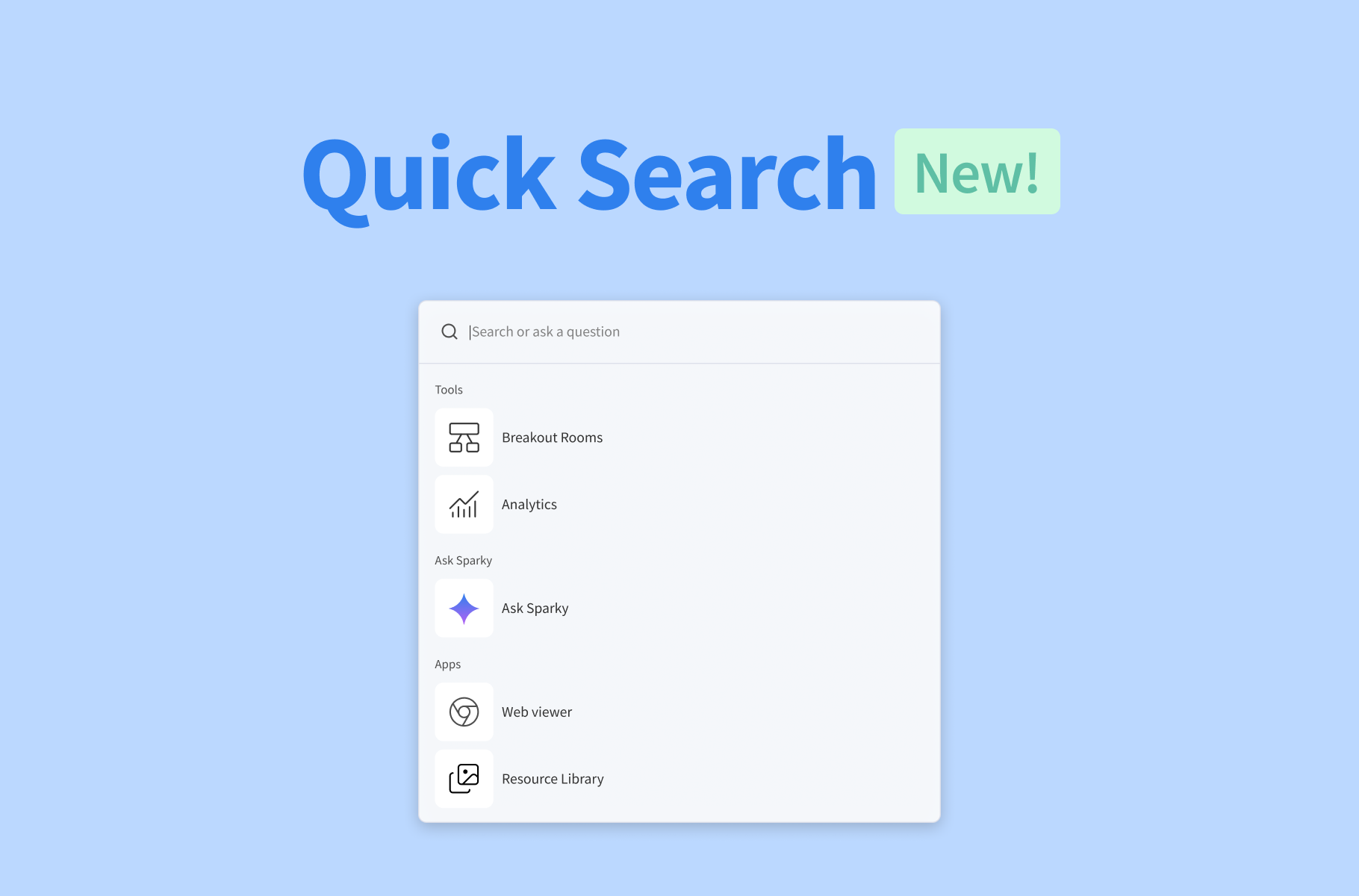
You can open the Document Editor from Apps and Tools in your Space and start writing together straight away.
Work through coding problems together
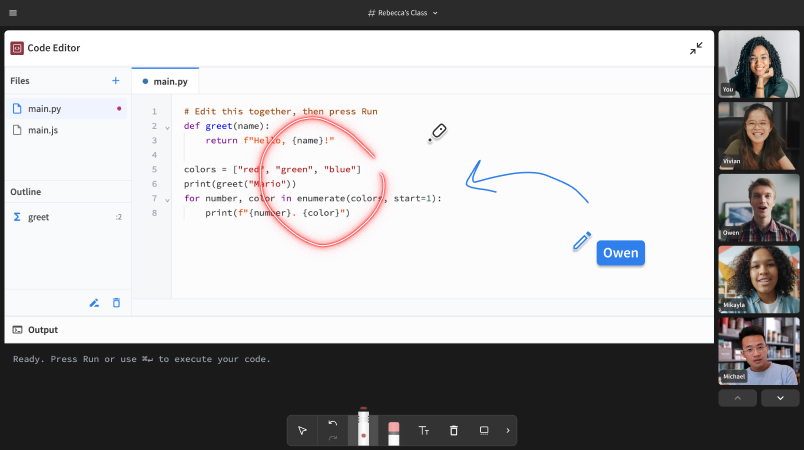
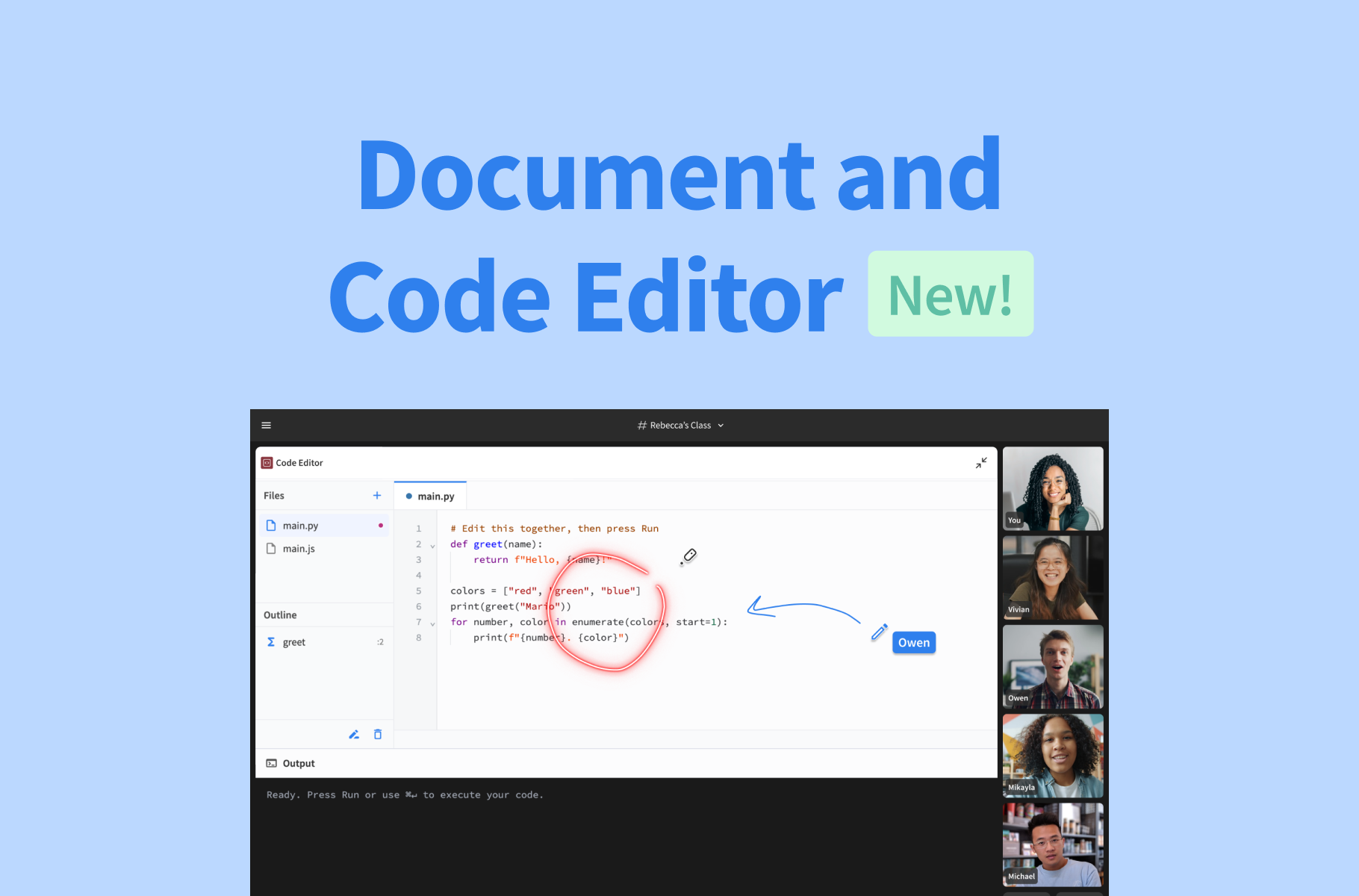
Use the Code Editor to help students test an idea, spot an error, and understand what to change. You can work on the same code together inside your Space.
Get hands-on coding practice, work across files, and run your code directly in the editor. This means you can demonstrate a concept, let your student try it themselves, and work through the results together all in the same place. No switching tabs or screen-sharing necessary.
The Code Editor supports both JavaScript and Python, allowing you and your students to:
- Practice programming: Give students a place to work through their coding exercises during a lesson, whether with their peers, a tutor, or by themselves.
- Write and edit code together: Collaborate on the same files at the same time.
- Test code as you go: Run code directly in the editor and review the output together.
- Work through problems: Help students understand errors, make changes, and see what happens when they run their code.
Open Apps and Tools, select Code, and you’re ready to start coding together.
More ways to learn by doing
Try an editor in your next lesson: work through a paragraph together, or ask a student to change a line of code and explain the result.
Students can write while you guide them, experiment with code while you work through problems together, and get feedback as they go. And everything stays in the same collaborative environment, so you can transition from explanation to practice seamlessly.
Both the Document and Code Editors are available now on all paid plans. Try them both today. For more details, see our Document Editor guide and Code Editor guide in the Help Desk.