

.png)
Keeping track of student questions can get tricky during online tutoring. This is especially true for tutors working with multiple students who want a chance to speak at once.
That’s why we’ve upgraded the raised hand feature in Pencil Spaces with the new raised hand queue. Now, it’s much easier for tutors to see who’s waiting to ask a question and to work through them in order.
See who’s waiting to speak
When multiple students have their hands raised at the same time, you’ll see a new option to View the full list. Clicking this opens the Queue panel from Manage, where you can see who’s waiting for their turn to speak.
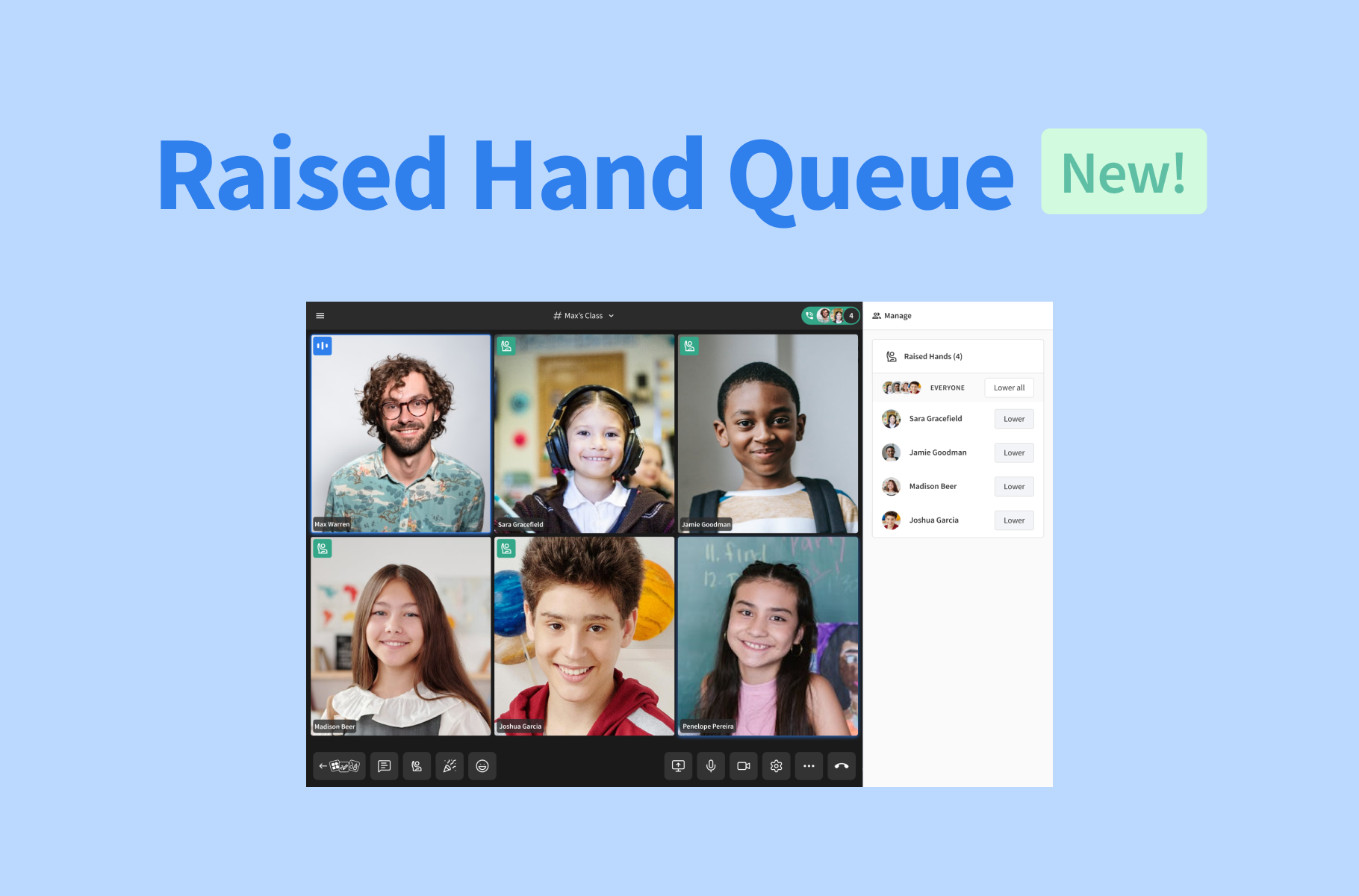
Participants will appear in chronological order, with the first person to raise their hand at the top and the most recent at the bottom. Should a student lower their hand and then raise it again, they’ll be moved to the bottom of the queue based on their new raise time.
With the queue, you can now work through questions and discussions without losing track of who’s had their turn to speak.
Ask students to unmute
Once you’re ready to take a student’s question, you can Ask to speak directly from their raised-hand notification. If they’re muted, this will prompt a notification asking them to unmute, which they can do directly from the pop-up before proceeding with their question.
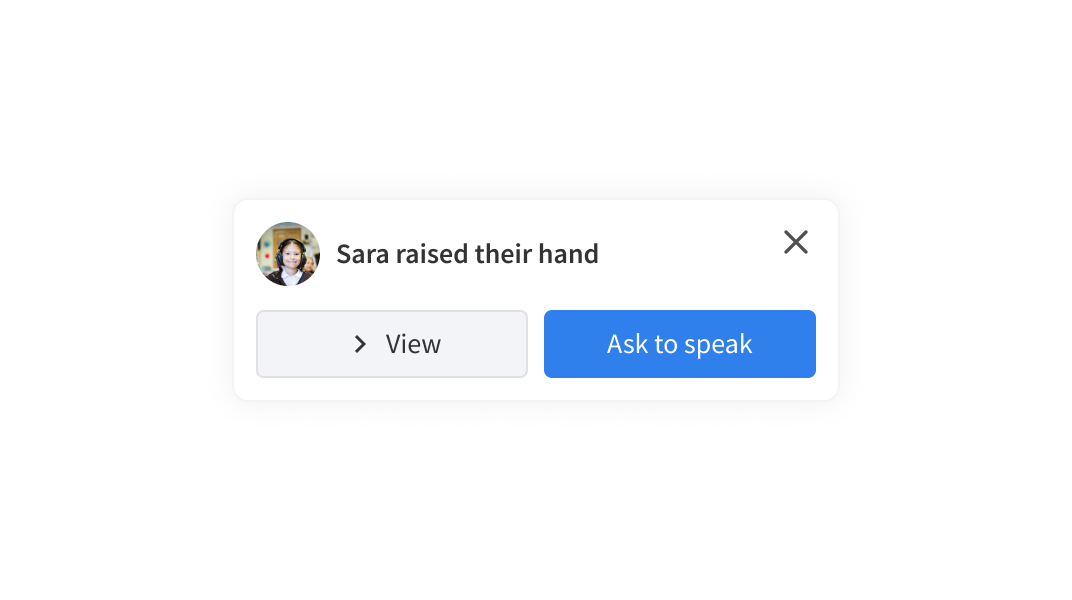
This makes it easier and quicker than ever for you to move from “I have a question” to “go right ahead,” without having to interrupt the flow of your lesson with reminders about microphones.
Lower hands for students
Students can still lower their own hands after they’ve asked their question. But as anyone who’s taught online before will know, it’s not uncommon for students to forget that their hand is still virtually raised. Now if someone forgets, you can lower it for them.
From the Queue panel, you can Lower an individual participant’s hand, or if you need to clear the entire queue, you can also select Lower all at once. This is particularly useful when you’ve worked through a few questions and are ready to start with a clean slate for questions or discussions.
Instead of keeping track of notifications, trying to remember who raised their hand first, and manually coordinating when students can speak, you can now view your queue, address questions in order, and invite students to speak as you go. Try it out in your next session and see how much easier it is to keep your lesson moving.
Ready to give it a try? Open a Pencil Space and use the raised hand queue in a lesson today. And if you want to learn more about where to find it and how to use it, check out our guide in the Help Desk.