
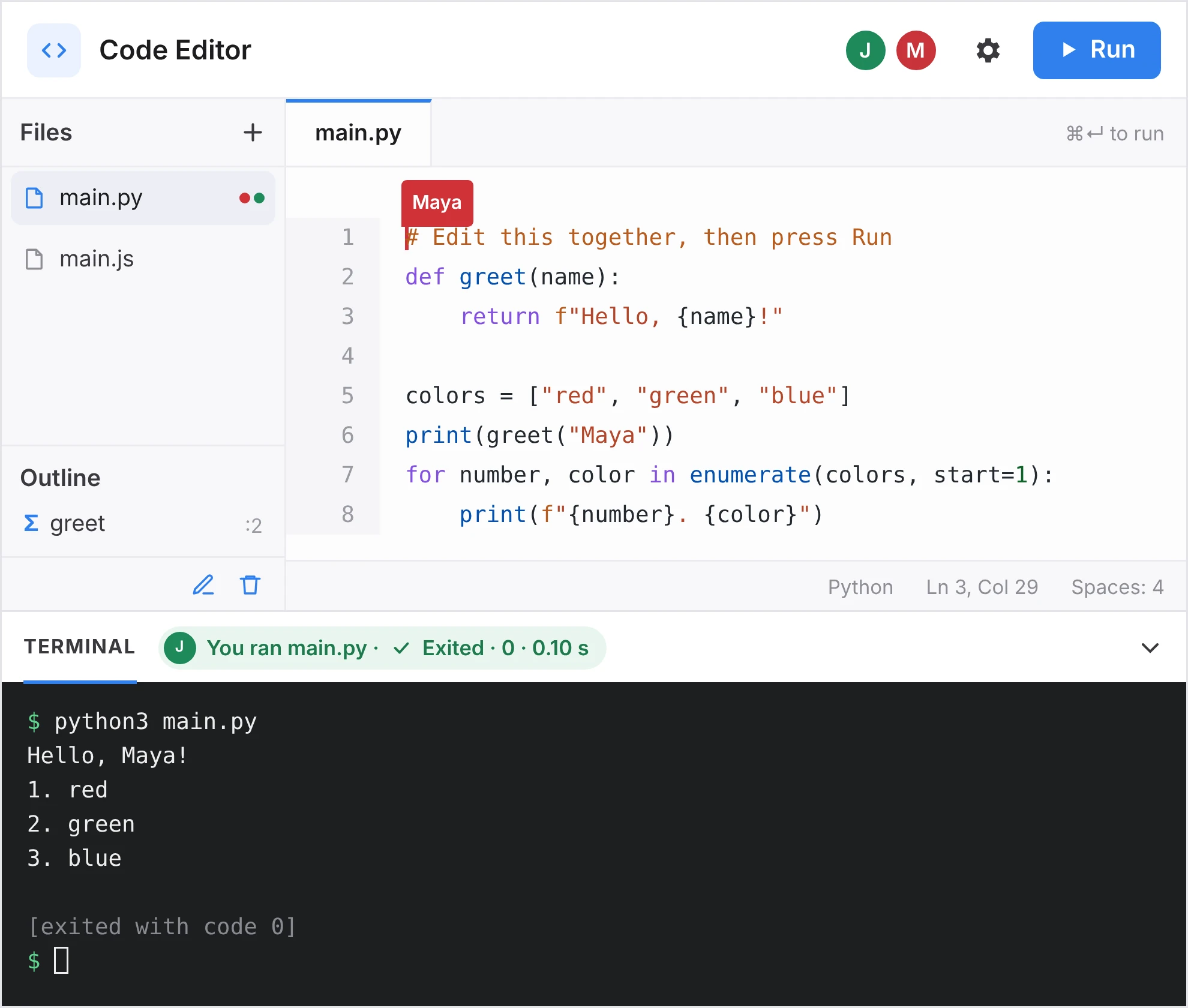
Two cursors, one file, one terminal everyone sees.
App library · Code Editor Coming soon
Write it together. Run it on the board.
How do you teach?
The Code Editor in Pencil Spaces puts a working code editor on the board you teach on. Everyone in the Space types in the same file and sees whose cursor is where. Press Run and the output appears for everyone at once, in any of 10 languages, from Python and Java to C++ and Rust.
Your student’s loop prints the wrong thing. Open the Code Editor and watch them type, with their cursor and yours in the same file. Press Run together and you both see the output, so you teach the fix instead of reading out line numbers.
One student’s bug is a lesson for the whole class. Open the Code Editor, let them type the fix on the board and press Run. Every student sees the output at the same moment, along with who ran it.
Participants remember the code they type themselves. Open the Code Editor in your workshop Space and anyone in the group can write the next line. Press Run and everyone sees the result together.
Put the Code Editor on the board at the front of the room. Type the example, press Run and the output is on the classroom display. Students who open the Space on their laptops edit the same file you do.
Put the Code Editor on the shared screen at the front of the room. Participants write along on their laptops, in the same file. Press Run once and the whole room sees what the code does.
Your child is learning to code and the homework won’t run. Open the Code Editor in your Space at the kitchen table and press Run together. You both see the error, and there’s nothing to install on the family laptop.
Free for 2 weeks on any paid plan. No credit card required.
Why it’s easier
Stop teaching code by screen share.
One file for the whole room.
No setup on the family laptop.
On a video call, one person drives. Your student shares their screen, you read out line numbers and every fix waits while they find the spot. In the Code Editor, you both type in the same file.
On a video call, one student shares their screen and the rest of the class watches. When the fix comes, everyone copies it into their own editor, and a few copies won’t run. In the Code Editor, the class works in one file.
On a video call, you share your screen, paste the code into the chat and wait while everyone copies it into their own tools. Then you fix the setups that won’t run. In the Code Editor, the group works in one file.
In most computer classes, you type on the projector and students copy it into their own editors. A few have a typo you can’t see from the front. In the Code Editor, the class works in one file.
At most workshops, you type on the shared screen and participants copy it onto their laptops. Someone’s setup always falls behind. In the Code Editor, the room works in one file.
Getting a child started with code usually means installing tools first, then fixing the install. The Code Editor runs in a cloud sandbox inside your Space, so the family laptop only needs a browser.
The usual way
- Ask your student to share their screen.
- Read out the line and the fix.
- Wait while they find it and retype it.
- Ask them to run it and read you the error.
- Ask one student to share their screen.
- Read out the fix while the class waits.
- Ask everyone to copy it into their own editor.
- Help the students whose copy won’t run.
- Share your screen and type the example.
- Paste the code into the chat.
- Wait while everyone copies it into their own tools.
- Troubleshoot each setup that won’t run it.
- Type the example on the projector.
- Students copy it into their own editors.
- A few have a typo you can’t see from the front.
- Walk the rows to find it.
- Type the example on the shared screen.
- Participants copy it onto their laptops.
- Someone’s setup won’t run it.
- Pause the workshop to fix their laptop.
- Work out which version of Python to install.
- Install it, then an editor.
- Fix the setting that stops it running.
- Finally start the homework.
With the Code Editor
- Open the Code Editor on the board.
- Type the fix where they can see it.
- Press Run. You both see the output.
- Open the Code Editor on the board.
- Let the student type the fix in front of everyone.
- Press Run. Every student sees the output.
- Open the Code Editor in your workshop Space.
- Everyone writes in the same file.
- Press Run. The whole group sees the result.
- Open the Code Editor on the board at the front.
- Students open the same Space on their laptops.
- Press Run. The output is on every screen.
- Open the Code Editor on the shared screen.
- Participants write in the same file from their laptops.
- Press Run. The whole room sees the result.
- Open the Code Editor in your Space.
- Your child types while you watch the same file.
- Press Run. You both see what happened.
What’s inside
A real editor, inside your Space.
The Code Editor works like the editors programmers use every day, with files, a terminal and suggestions as you type. It sits on the board next to everything else you teach with.
Type in the same file
Everyone in the Space edits at once. Each cursor carries a name, so you can see who is typing where.
Run it for everyone
Press Run or ⌘↵. The output, who ran it and how long it took appear in a terminal everyone sees.
10 languages
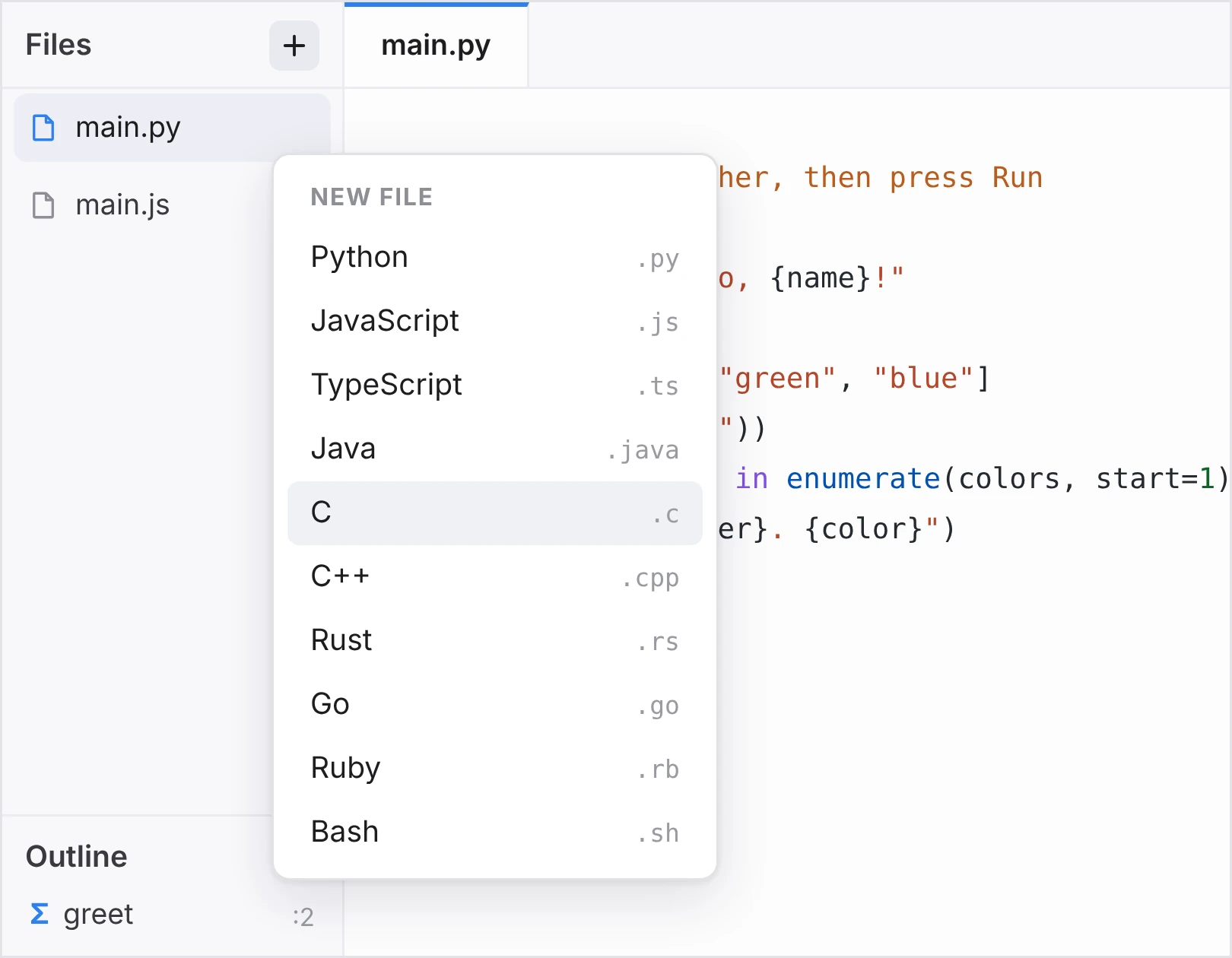
Python, JavaScript, TypeScript, Java, C, C++, Rust, Go, Ruby and Bash. Pick one when you add a file.
A real terminal
Click into the terminal to open a shell and run commands yourself.
Libraries such as NumPy
Import NumPy and the libraries real projects use, or install more with pip and npm from the terminal.
More than one file
Add files from the Files panel. The Outline lists every function, so you can jump straight to it.
Help as you type
Turn on IntelliSense for suggestions, hover info and full error checking in every language.
Settings the host controls
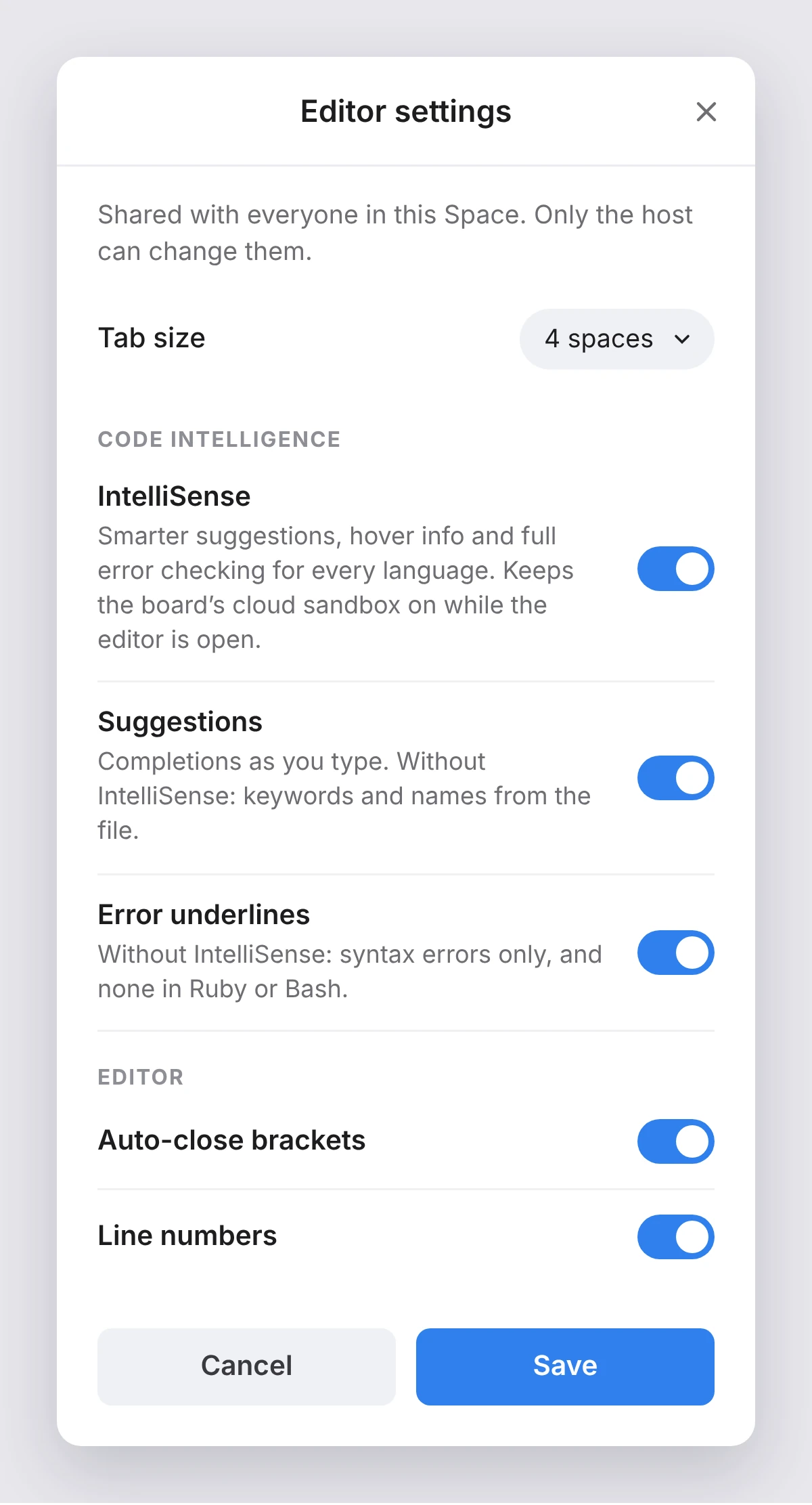
Tab size, suggestions and error underlines are shared with everyone in the Space. Only the host can change them.
Nothing to install
Code runs in a cloud sandbox for your Space, so any laptop, Chromebook or iPad with a browser can join in.
Before, during and after
From warm-up to wrap-up.
Before the lessonBefore classBefore the workshopBefore homework
Ready when they arrive.
Add starter files ahead of time. They stay in the Space, so everyone opens on the first exercise.
During the lessonDuring classDuring the workshopDuring homework
Fix it while they’re curious.
Watch them type, spot the slip and press Run together. Everyone sees the same error, then the same fix.
After the lessonAfter classAfter the workshopAfter homework
Practice where they left off.
The files stay in the Space, so next time starts from the same code.
Ask Sparky
The editor runs it. Sparky explains it.
Sparky, the AI assistant in Pencil Spaces, reads the code in the Code Editor. Ask it why something won’t run, what a function does or for the next exercise.
Explain the error
Ask why the code won’t run. Sparky reads it and explains the problem in plain words.
Walk through the code
Ask what a function does, and Sparky explains how it works.
Write the next exercise
Ask for starter code or a practice problem, and Sparky writes it into the editor.
For schools and teams
Every teacher, ready to run the next example.
Nothing to roll out
No software on any device.
Code runs in a cloud sandbox, so there’s nothing to install or update.
One standard
One editor for every teacher.
Every teacher gets the same editor, the same languages and the same settings.
One place
Code next to everything else.
Teachers who cover math, science and coding teach all of it in one Space.
For tutoring companies
Every tutor, ready to run the next example.
Nothing to set up
Nothing for families to install.
Students join in the browser, with no software on their laptops.
One standard
One editor for every tutor.
Every tutor gets the same editor, the same languages and the same settings.
One place
Coding next to math and more.
Tutors who teach math and coding use one Space for both.
For training teams
Every trainer, ready to run the next example.
Nothing to install
No setup on participants’ laptops.
Code runs in a cloud sandbox, so the first exercise starts on time.
One standard
One editor in every workshop.
Every trainer gets the same editor, the same languages and the same settings.
Host controls
Settings the trainer controls.
Switch off suggestions for a practice round, and the change applies to the whole group.
260 million
minutes of live learning
162+
countries
4.8
on G2
Open it from the apps tray.
Apps
The apps tray at the bottom of the board
⌘K
Then type “code editor”
⌘↵
The same as pressing Run
The first run can take up to a minute while the sandbox starts. After that, a short program runs in about a tenth of a second.
Your coding questions, answered.
Which programming languages does the Code Editor support?
The Code Editor supports 10 languages: Python, JavaScript, TypeScript, Java, C, C++, Rust, Go, Ruby and Bash. You choose the language when you add a file, and one editor can hold files in different languages, such as a Python file next to a JavaScript one.
Can everyone in the Space type in the same code at once?
Yes. Everyone in the Space edits the same files at the same time, and each cursor shows the person’s name. When anyone presses Run, the output appears in a terminal everyone sees, along with who ran it and how long it took.
Does anyone need to install anything?
No. Code runs in a cloud sandbox for your Space, so a laptop, Chromebook or iPad with a web browser is enough. The first run can take up to a minute while the sandbox starts. After that, short programs run in well under a second.
Can I use libraries such as NumPy?
Yes. Python code in the Code Editor can import libraries such as NumPy, and the terminal opens a shell where you can install more with pip or npm. That lets you move from first loops to working with real data.
Can I turn off autocomplete for a quiz?
Yes. The host can switch off IntelliSense, suggestions and error underlines in Editor settings. The change applies to everyone in the Space, so everyone writes code without hints during a quiz or practice round.
Is the code still there next time?
Yes. Your Space stays put after everyone leaves, so the files in the Code Editor are waiting next time, ready to pick up where you left off.
See it run in your next lesson.
See it run in your next class.
See it run in your next workshop.
See it run at the kitchen table.
Coming soon to the apps tray in your Space.
New to Pencil Spaces
Talk to us about teaching code.
We’ll walk you through what’s coming and what’s live today.
Free for 2 weeks on any paid plan. No credit card required.
Already teaching in Pencil Spaces
Watch for it in your apps tray.
Updates land on What’s New.