

 ×
× LMS
LMSConnect your LMS to Pencil Spaces with LTI 1.3.
For schools, universities and online programs with their own LMS. LTI 1.3 is the standard learning platforms use to launch outside tools securely. Teachers add a Pencil Spaces classroom to a course, and students are signed in automatically when they open it.
Already on Pencil Spaces? Open Settings › API & Integrations › LTI to add a configuration.
LTI 1.3 launchFrom your LMS to the SpaceBiology 101 · Live classAbout LTI 1.3
A standard, not a product. Set it up once per LMS.
Learning Tools Interoperability® (LTI®) is the 1EdTech standard learning platforms use to launch outside tools. Version 1.3 signs every launch instead of sharing passwords, and LTI Advantage adds services such as Deep Linking.
“A technical standard (not a product) used to connect learning tools with an institution’s learning environment.”
How 1EdTech describes LTI, at 1edtech.org
2019
LTI 1.3 issued by 1EdTech
2022
support for LTI 1.0, 1.1 and 2.0 ended
Once
per LMS: an admin registers the tool
LTI words you’ll see on this page
Your LMS handles
handles
LTI and Learning Tools Interoperability are trademarks of 1EdTech Consortium, Inc. (1edtech.org).
How it works
Your LMS launches. Pencil Spaces verifies.
The same three roles, whichever LMS you run.
Admin
Register the tool
Register Pencil Spaces as an LTI 1.3 tool with the Dynamic Registration URL from our guide.
Deploy it where teachers need it.
Add the Client ID and Deployment ID in Settings › API & Integrations › LTI.
Teacher
Add a Space
Add an external tool item to the course.
Pick a Space with Deep Linking.
Student
Open and join
Open the item.
Launch verified and signed in, then into the Space in a new tab.
Works with
Start with Canvas, or talk to us about yours.
Pencil Spaces registers with LTI 1.3 Dynamic Registration. Canvas has a step-by-step guide. For other platforms, our team will check your setup with you first.
Step-by-step guide
Documented and in use with customers
Other LTI 1.3 platforms
Needs LTI 1.3 Dynamic Registration
Using Moodle, Blackboard, D2L Brightspace or Schoology? Ask our team before you set it up.
Setup
Connected in three steps.
An LMS admin registers Pencil Spaces once. After that, teachers add Spaces to their courses themselves.
Register Pencil Spaces.
In your LMS, add Pencil Spaces as an LTI 1.3 tool using Dynamic Registration and the registration URL from our guide. Note the Client ID.
Deploy it.
Install the tool where teachers need it and note the Deployment ID.
Add your IDs to Pencil Spaces.
In Settings › API & Integrations › LTI, click + Add LTI Configuration, enter both IDs and click Update.
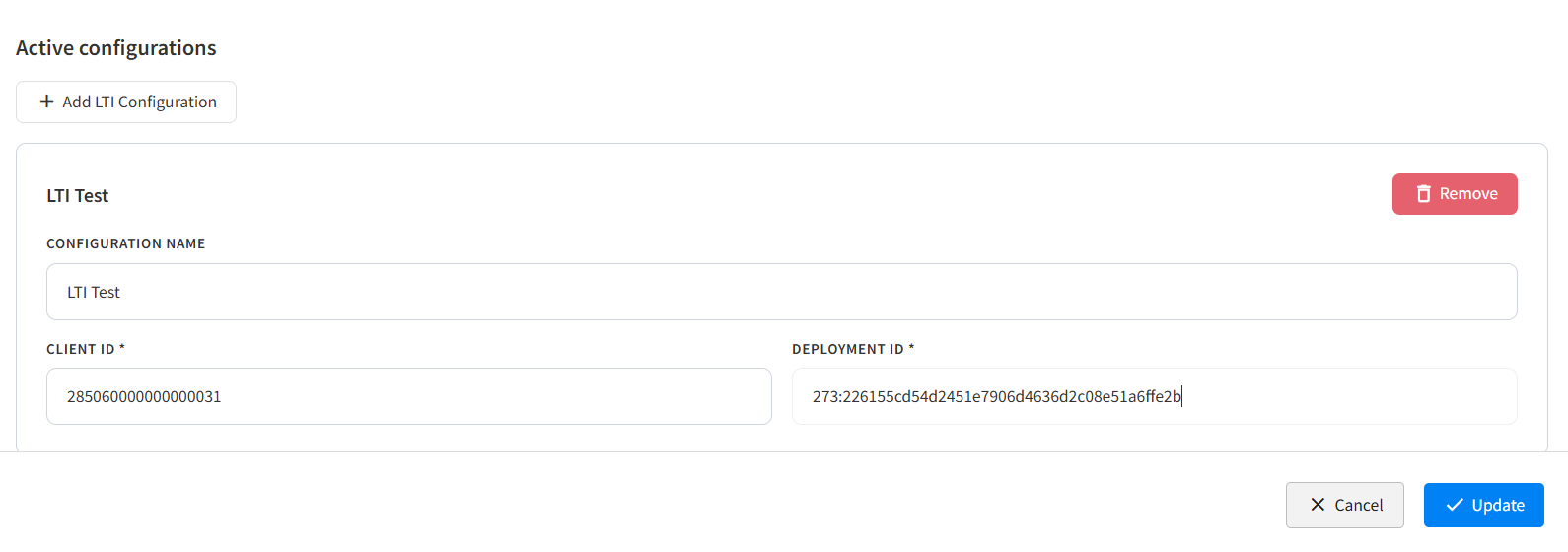
Your Client ID and Deployment ID go in Settings › API & Integrations › LTI.

Teachers pick a Space and click Add to Course.
FAQ
Questions, answered.
Which LMSs does it work with?
Pencil Spaces uses LTI 1.3 with Dynamic Registration. Canvas has a step-by-step guide and is in use with customers. If you run another LMS, contact our team first and we’ll check your setup with you.
Do students need a separate login?
No. When a student opens a Pencil Spaces item in your LMS, the launch signs them in and takes them to the Space.
Does it sync rosters or grades?
No. LTI here covers sign-in and adding Spaces to courses. To import rosters, use our Edlink integration.
Can we connect more than one LMS?
Yes. You can add several LTI configurations, each with its own Client ID and Deployment ID.
Is Pencil Spaces 1EdTech certified?
Pencil Spaces is built on the LTI 1.3 standard. If your institution requires 1EdTech certification, talk to our team.
How is student data protected?
Pencil Spaces is FERPA, COPPA and SOC 2 Type II compliant. LTI 1.3 launches are signed, so no passwords pass between your LMS and Pencil Spaces.
×Get started
Put your live classroom inside your LMS.
Tell us which LMS you run, and we’ll help you connect it to Pencil Spaces.
New to Pencil Spaces
Check your LMS with us.
Book a call and we’ll walk through the setup with your LMS before you start.
Already a customer
Set it up from your settings.
Register Pencil Spaces in your LMS, then add your IDs in Settings › API & Integrations › LTI.