
Import your rosters from your LMS or SIS in one click.
Built for tutoring providers and online schools. Edlink connects Pencil Spaces to Canvas, PowerSchool, Schoology and the other systems your schools run. One sync brings in every student, tutor and admin with the right role, in the right site, ready to schedule.
Already on Pencil Spaces? Open Settings › API & Integrations › LMS & SIS and click Connect next to Edlink.
Your LMS or SIS
 Students✓Tutors✓Admins✓Sites✓
Why connect
Rosters change every week. Spreadsheets can’t keep up.
Without a connection, someone on your team exports a file, fixes it, uploads it, and starts over the next time enrollment changes.
Without Edlink
With Edlink
What syncs
Everyone lands in the right place.
Pencil Spaces reads each person’s role and school from Edlink. It gives them the matching role and adds them to the site mapped to their school.
Works with
The systems your schools already use.
Edlink connects to the major LMS and SIS platforms, so one integration covers schools that run different systems.
Learning management systems
Where classes and coursework live
Student information systems
Where enrollment and records live
Edlink supports many more platforms. Not sure about yours? Ask our team.
Who it’s for
For tutoring providers, online schools and the schools they serve.
If the students you teach are already rostered in a school’s LMS or SIS, this is for you.
Tutoring providers
Win district contracts, then serve them.
District RFPs ask for student rostering. Say yes, then bring in each school’s students as its own site.
Online schools
Keep class lists in step with your SIS.
When enrollment changes, run a sync instead of rebuilding a spreadsheet.
Districts and partner programs
Run tutoring from the district’s own systems.
Districts running their own programs, and nonprofits that place tutors in schools, can pull rosters straight from the district’s LMS or SIS.
Colleges and universities
Bring course rosters into tutoring and support.
Connect Canvas, Blackboard, D2L Brightspace or Moodle to run tutoring centers and online programs in Pencil Spaces.
Trust
Built on infrastructure schools already trust.
7,000
districts and universities connected through Edlink
60M
people synced through Edlink every day
24/7
live support from the Pencil Spaces team
Edlink figures and certifications as published by Edlink at ed.link.
Setup
Connected in three steps.
Our support team handles the connection. After that, a sync takes one click.
Ask us to connect.
In Settings › API & Integrations › LMS & SIS, click Connect next to Edlink, then Contact Support. We set it up and link your schools to the right LMS or SIS.
Click Sync.
Once Edlink shows as Active, click Sync. Pencil Spaces imports your users and their roster data.
Check the result.
A Sync completed message shows how many users came in and how many sites they joined. Sync again whenever rosters change.
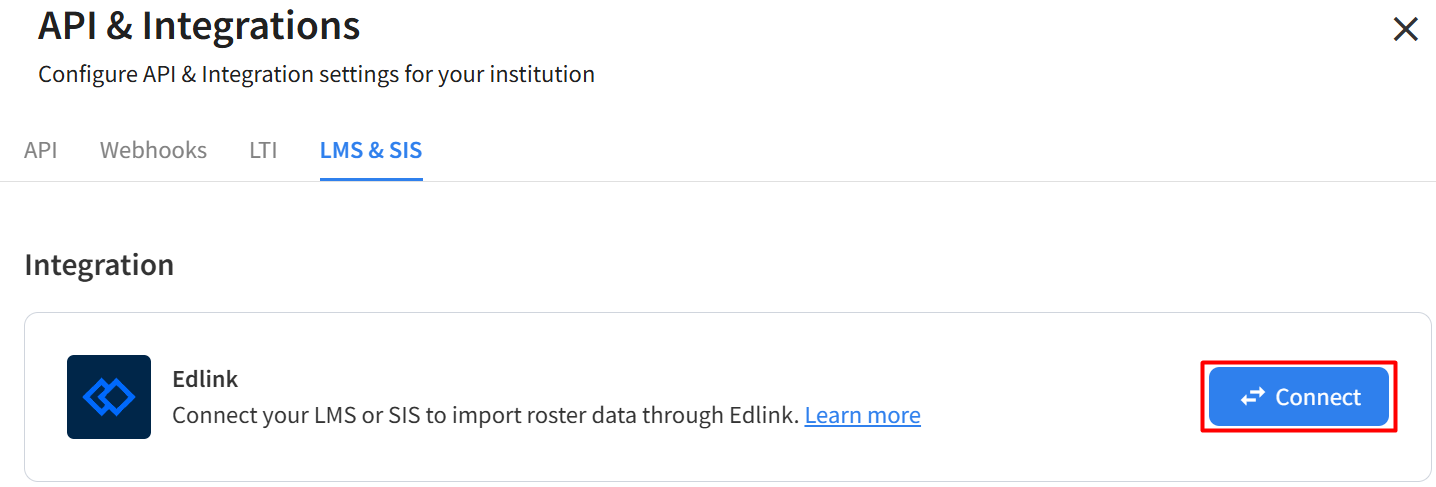
Edlink in Settings › API & Integrations › LMS & SIS.
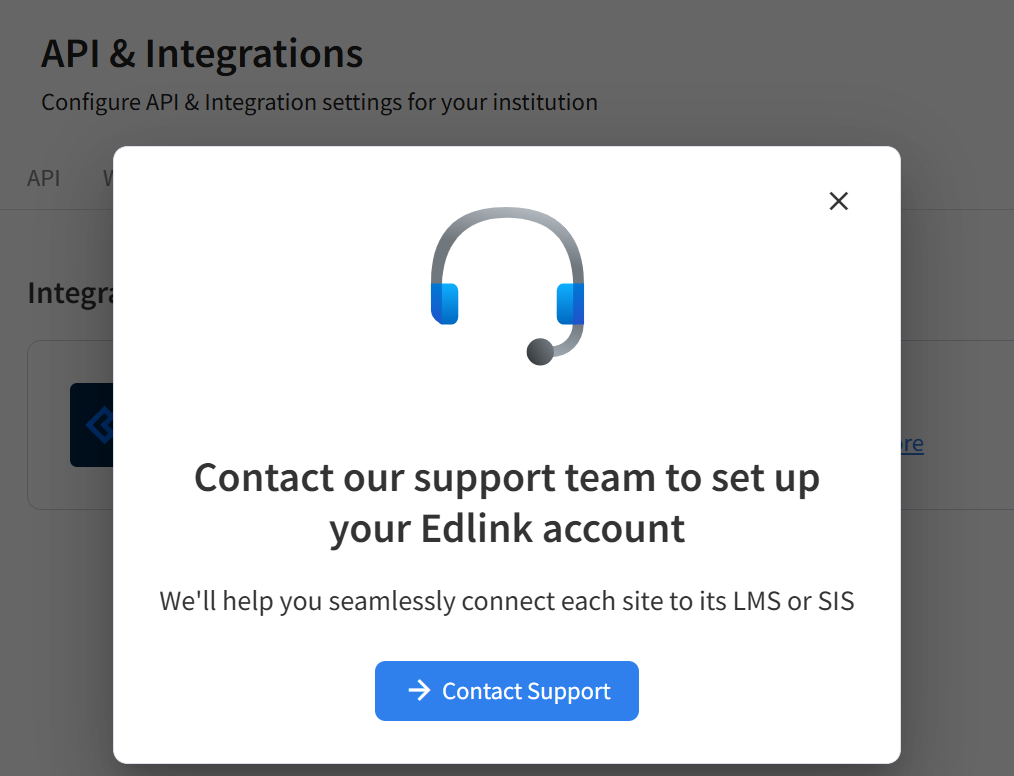
Click Connect, and our team takes it from there.
FAQ
Questions, answered.
Do we still need CSV files?
No. Edlink imports your roster data directly, so nobody creates accounts or uploads files by hand.
What does a sync bring in?
Your users and roster data. Each person gets a Pencil Spaces role based on their Edlink role, such as student, tutor or admin, and joins the sites mapped to their school.
How often does it sync?
Whenever you choose. Click Sync in your settings after rosters change, and Pencil Spaces brings in the latest data.
Does Edlink handle sign-in too?
This integration handles rostering. For sign-in, Pencil Spaces works with Google, Clever and ClassLink.
Who sets it up?
Our support team. Click Connect next to Edlink in your settings and choose Contact Support. We configure Edlink with your LMS or SIS and connect your schools.
How is student data protected?
Pencil Spaces is FERPA, COPPA and SOC 2 Type II compliant. Edlink is FERPA compliant, audited for SOC 2 Type II, and encrypts data in transit and at rest.
Get started
Connect your schools to Pencil Spaces.
Tell us which LMS or SIS you use, and we’ll set up Edlink with you.
New to Pencil Spaces
See it with your own systems.
Book a call and we’ll show you how a sync works with the LMS or SIS your schools run.
Already a customer
Set it up from your settings.
Go to Settings › API & Integrations › LMS & SIS and click Connect next to Edlink.