

 ×
× LMS
LMSOpen your live classroom from any Canvas course.
For schools, universities and online programs that teach in Canvas. Teachers add a Pencil Spaces classroom to a module, like any other external tool. Students click it, are signed in automatically, and land in the right Space with video and a shared whiteboard. Built on LTI 1.3.
Already on Pencil Spaces? Open Settings › API & Integrations › LTI to add your Canvas details.
CanvasAlgebra I › ModulesUnit 3 · Linear equations
Module items
Algebra I · Thursday reviewAbout Canvas
The LMS your classes already live in, with a live classroom added.
Canvas, from Instructure, is the learning management system K-12 schools, colleges and universities use to run courses, modules, assignments and grades.
“When you upgrade to Canvas, you join the #1 LMS in North America and a global community of educators and partners.”
How Instructure describes Canvas, at instructure.com
8,000+
customers in 100+ countries
50%
of college and university students in North America use Canvas or Canvas Career
1,000+
Canvas partners and integrations
Canvas words you’ll see on this page
Canvas handles
handles
Canvas figures and quote as published by Instructure at instructure.com.
How it works
One setup by an admin. Then it’s just a module item.
Here’s what each person does, in Canvas’s own words.
Admin
Register it once
Add Pencil Spaces as an LTI Registration in Admin › Developer Keys and turn it on.
Install it in the course by Client ID.
Paste the Client ID and Deployment ID in Settings › API & Integrations › LTI.
Teacher
Add a Space to a module
In Modules, click Add Item, choose External Tool, then Pencil Spaces.
A Select Space dialog opens. Pick a Space and add it to the course.
Student
Click and join
Open the Pencil Spaces item in the module.
Signed in automatically and taken to the Space, in a new window.
Setup
Connected in three steps.
A Canvas admin registers Pencil Spaces once. After that, teachers add Spaces to their modules themselves.
Register Pencil Spaces in Canvas.
In Admin › Developer Keys, add an LTI Registration with the URL from our setup guide, enable it, and copy the Client ID.
Install it in your course.
In Course Settings › Apps, add the app by Client ID, then copy its Deployment ID.
Add your IDs to Pencil Spaces.
In Settings › API & Integrations › LTI, click + Add LTI Configuration, paste both IDs and click Update. Teachers can now add Spaces to modules.

Teachers pick a Space and click Add to Course.
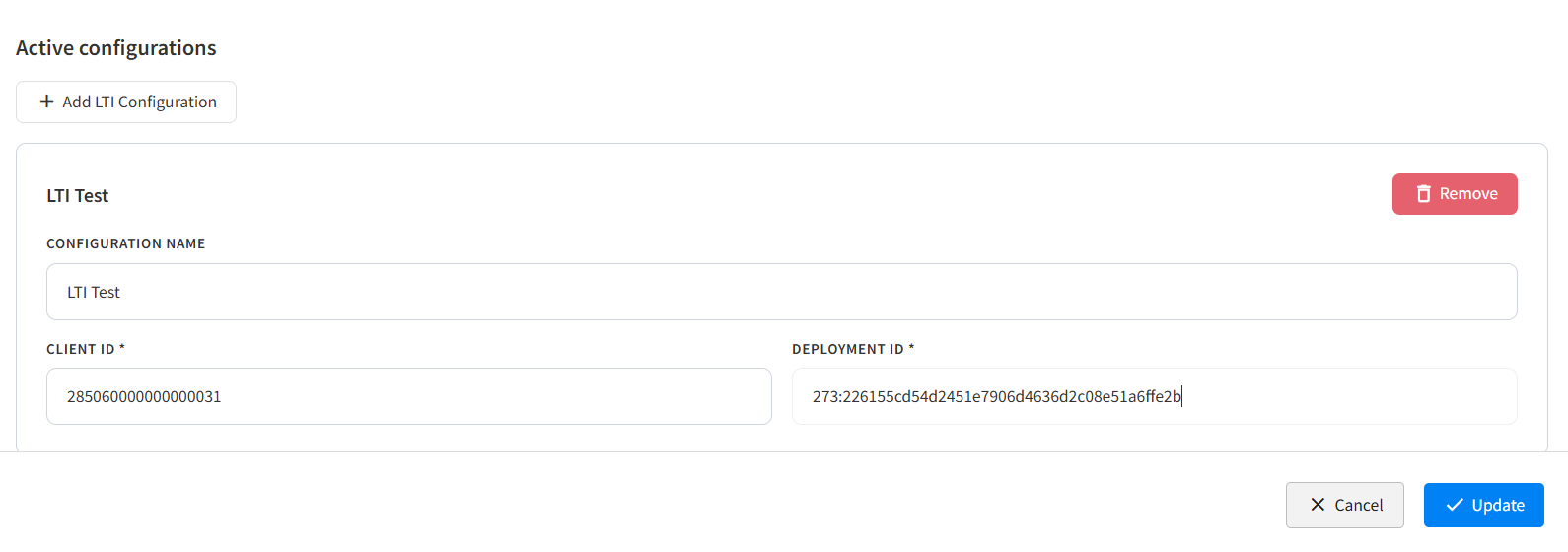
Your Client ID and Deployment ID go in Settings › API & Integrations › LTI.
FAQ
Questions, answered.
Do students need a Pencil Spaces login?
No. When a student opens a Pencil Spaces item in Canvas, they are signed in automatically and taken to the Space.
Will students sign in with their school email?
Yes, if your Canvas registration shares users’ emails with Pencil Spaces. Our support team can check this with you.
Does it open inside Canvas?
It opens in a new window, so the classroom gets the full screen for video and the whiteboard.
Does it sync rosters or grades?
No. The Canvas integration handles sign-in and adding Spaces to modules. To import rosters from your LMS or SIS, use our Edlink integration.
Who sets it up?
A Canvas admin registers Pencil Spaces in Developer Keys, and a Pencil Spaces admin adds the Client ID and Deployment ID in settings. Our support team can walk you through it.
How is student data protected?
Pencil Spaces is FERPA, COPPA and SOC 2 Type II compliant, and LTI 1.3 launches are signed so no passwords pass between Canvas and Pencil Spaces.
×Get started
Bring your live classroom into Canvas.
Tell us how your courses are set up, and we’ll help you connect Canvas to Pencil Spaces.
New to Pencil Spaces
See it in a Canvas course.
Book a call and we’ll show you how a teacher adds a Space and how a student joins.
Already a customer
Set it up from your settings.
Register Pencil Spaces in Canvas, then add your IDs in Settings › API & Integrations › LTI.